How to Install Downloader on Fire TV Stick
Updated September 5, 2026. By USAView Editorial Team. To install Downloader on Firestick, search for it in the Amazon Appstore, install it, then enable the required Developer Options permission. This guide covers each step and explains how to use Downloader to download an app on Fire TV.
What Is Downloader on Firestick?
Downloader is an app for Fire TV devices that lets you open a web address and download a file directly to the device. It is useful when an app or installation file is not available through the Amazon Appstore. After you install Downloader and grant it permission, you can enter a trusted URL or code, download the file, and follow the on-screen installation prompt.
Install Downloader
Downloader is installed from the Amazon Appstore. Once it is on your Fire TV Stick, you can use its URL field to download compatible files. Start with the three steps below.
-
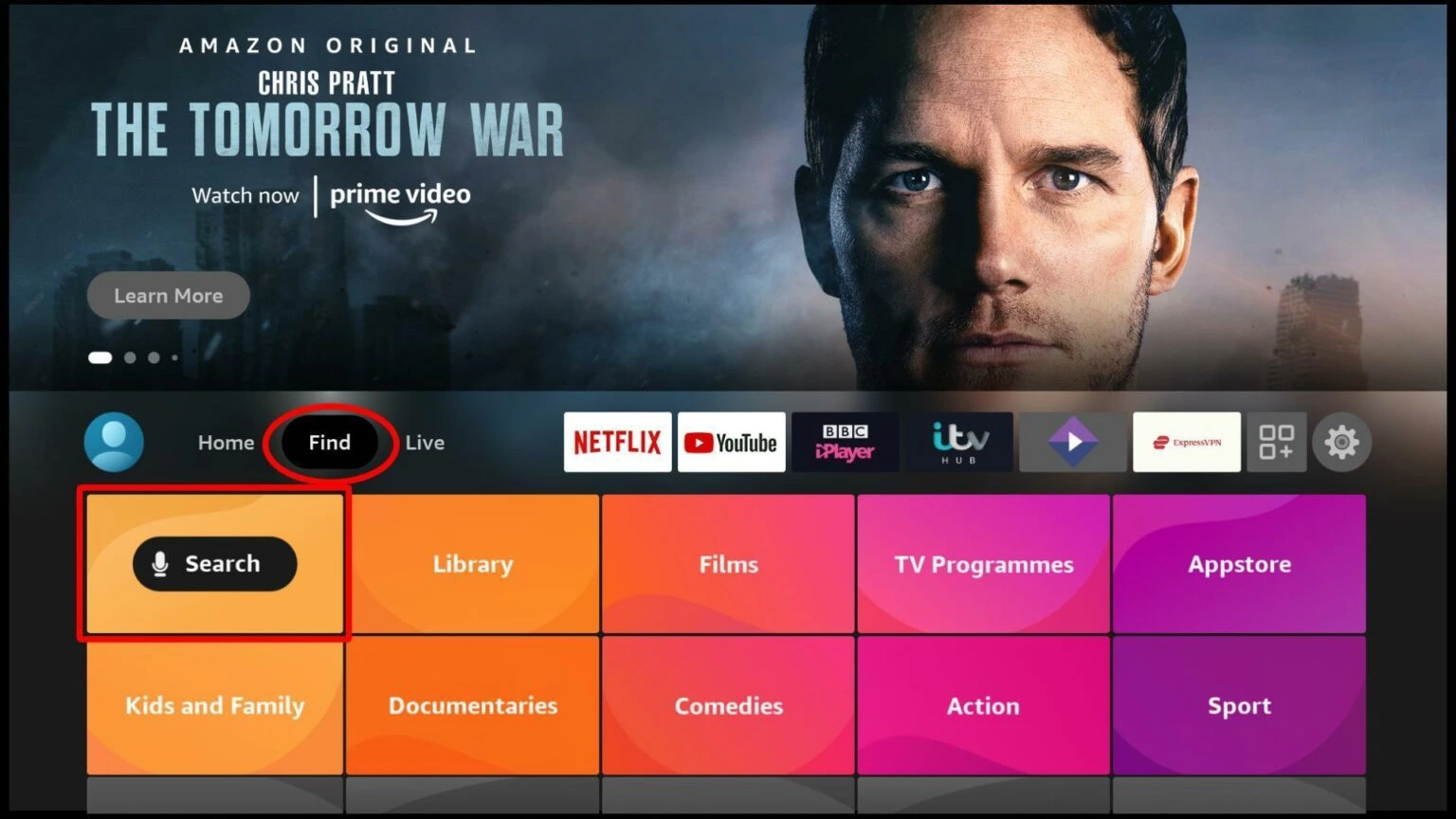
Open Search
From the Fire TV home screen, select Find, then choose Search.
-
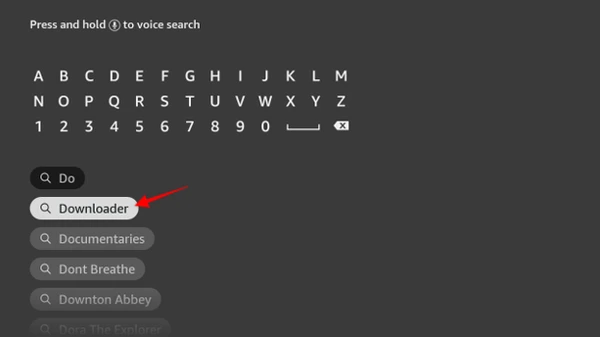
Type Downloader
Type Downloader with the on-screen keyboard and select the matching suggestion when it appears.
-
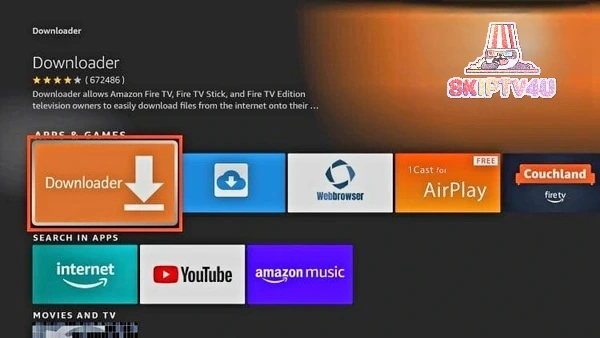
Select the App
Open the Downloader listing, select Get or Download, and wait for the installation to finish. Select Open when ready.
Prep Your Firestick
Fire TV may block installations from outside the Amazon Appstore by default. Enable the device setting for Downloader before attempting to install a downloaded app.
Allow "Apps from Unknown Sources"
Granting this permission will let you install apps you sideload via the Downloader app.
-
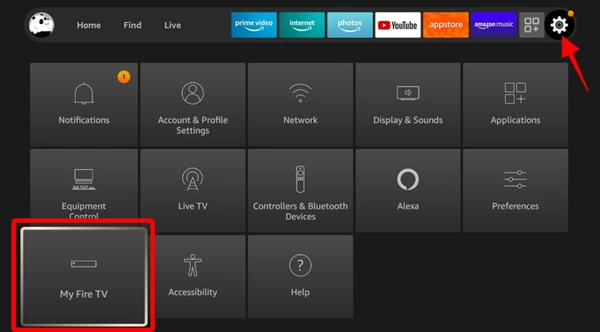
Go to Settings
From the Fire TV home screen, open Settings, then select My Fire TV.
-
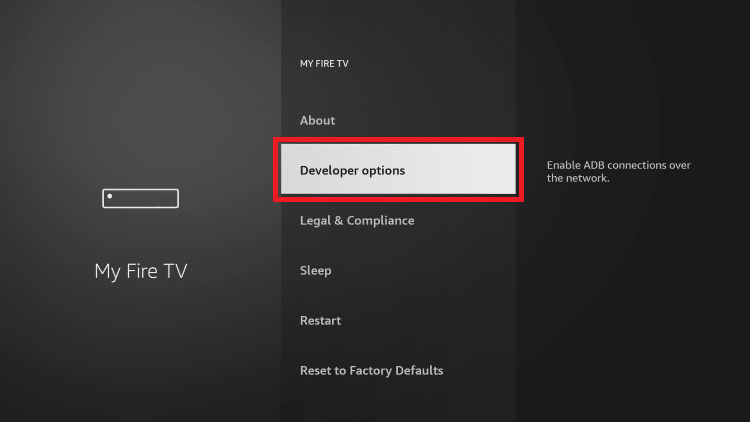
Developer Options
Select Developer options if it is already visible.
-
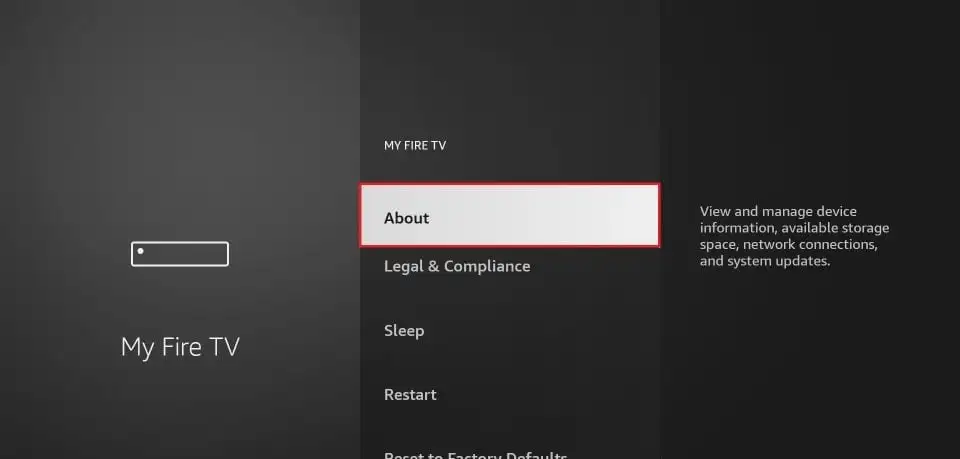
If Developer Options Are Hidden
If Developer Options is not visible, select About and continue to the next step. If it is already visible, open it and continue below.
-
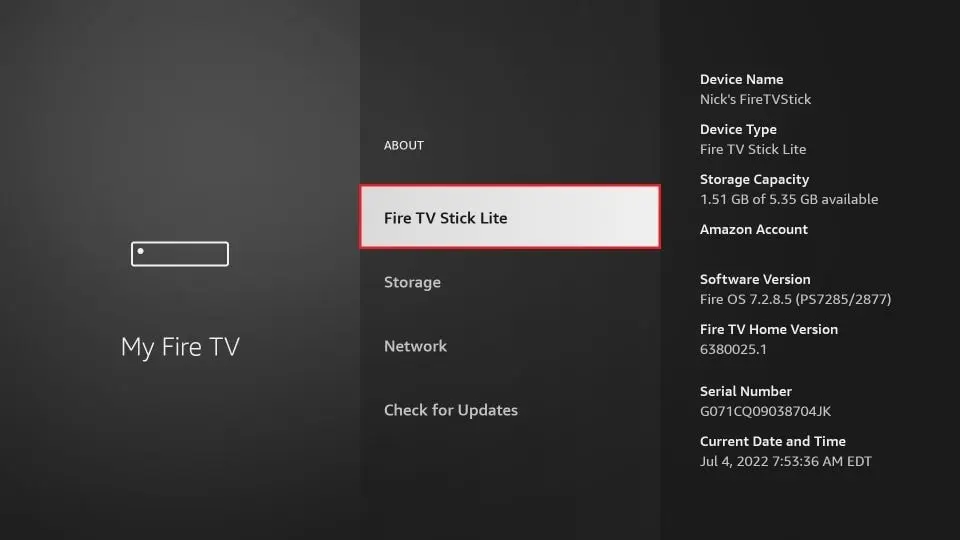
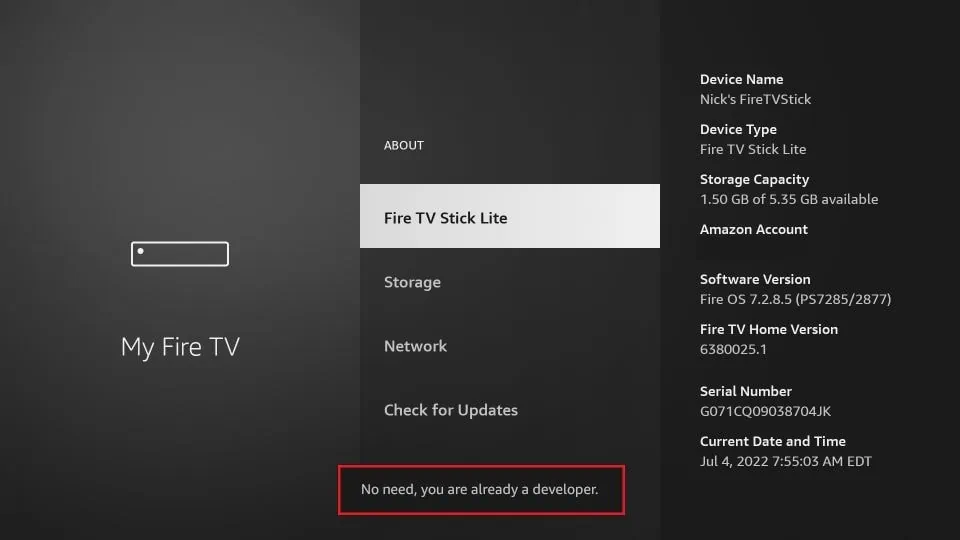
Unlock Developer Options
Select your Fire TV device name 7 times to unlock Developer Options.
-
Confirmation Message
After the seventh selection, look for a confirmation such as "Developer Options Enabled".
-
Open Developer Options
Return to the previous menu and select Developer options.
-
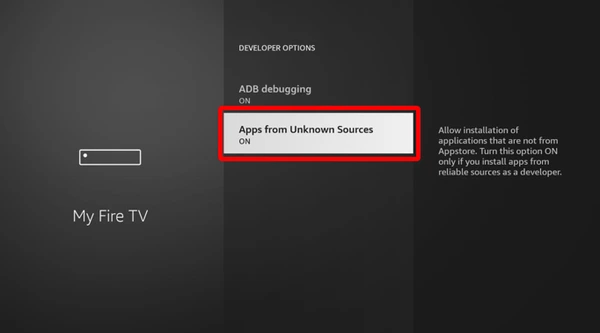
Enable Installation
On devices with a single toggle: select Apps from Unknown Sources and change it from Off to On.
On devices with per-app permissions: open Install unknown apps, select Downloader, and turn it On.
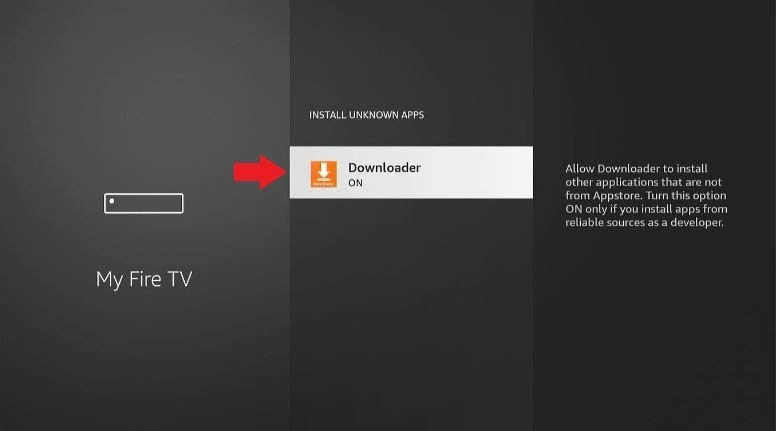
Downloader is now ready to download compatible files. Only install apps from sources you trust and review a file's source before opening it.
How to Use Downloader After Installation
Once Downloader is installed and has permission to install unknown apps, the basic process is straightforward. Use a download address or code from a source you trust, and check that the file is intended for your Fire TV device before installing it.
-
Open Downloader
Open Downloader from your Fire TV apps or the Apps & Channels row. The first launch may ask for permission to access files; follow the on-screen prompt.
-
Enter a URL or code
Enter a trusted direct-download URL or short code in Downloader's URL field, then select Go. Check the address carefully before continuing.
-
Download and install the file
Wait for the download to finish. If an installation prompt appears, select Install; when it completes, choose Done to return to Downloader or Open to launch the app.
Which Devices Work With Downloader?
Downloader is designed for TV devices and can be controlled with a compatible remote. The setup steps on this page focus on Amazon Fire TV devices; other Android TV devices may use different menus and permissions.
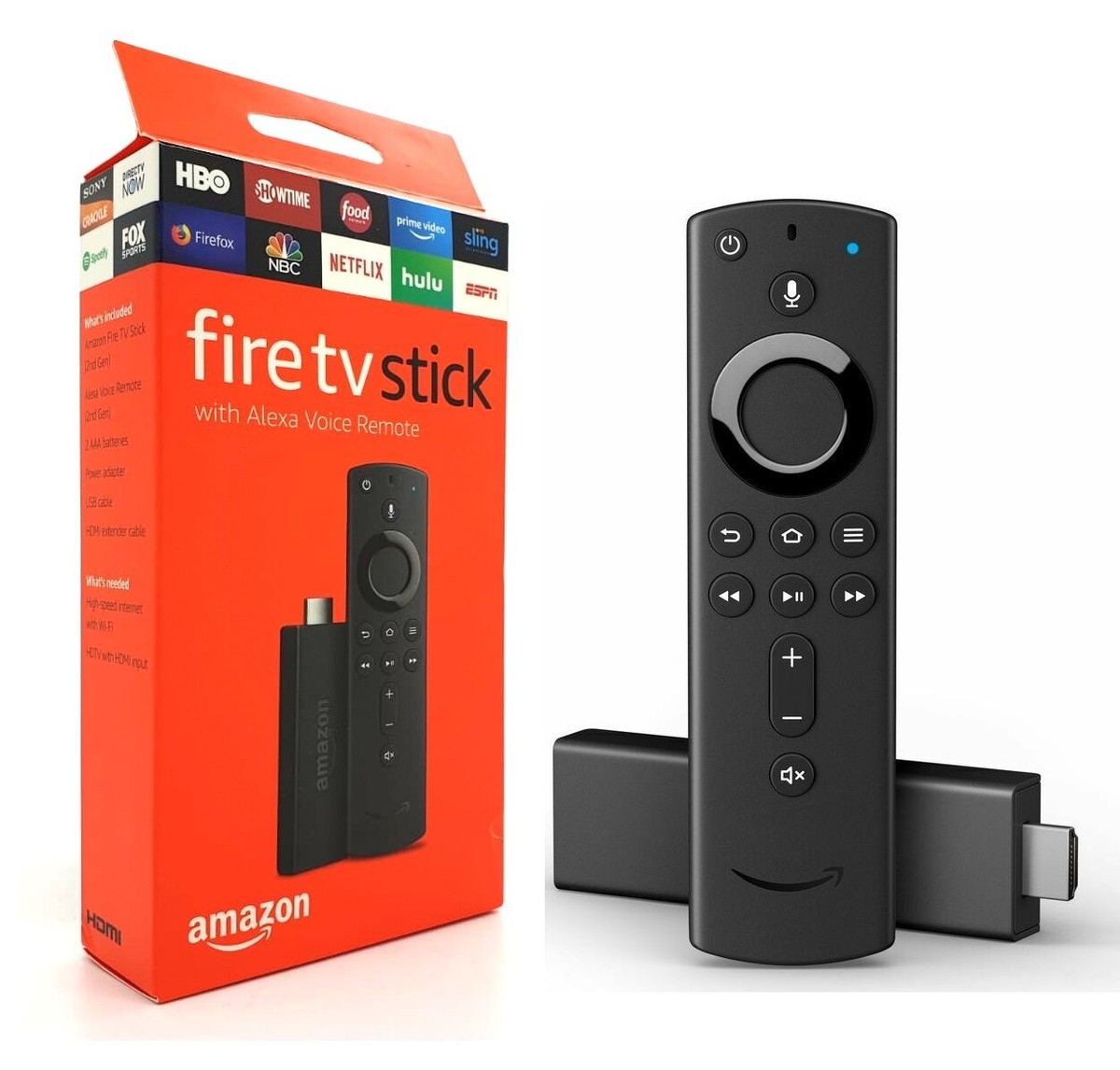
Amazon Fire TV Family
Every iteration including the Amazon Fire TV Stick, Fire TV Stick 4K, Fire TV Stick 4K Max, and the Fire TV Cube.
Google TV / Android TV Players
Popular retail units like the Google Chromecast with Google TV, Google TV Streamer, Nvidia Shield TV, Xiaomi Mi Box and other Android TV boxes.
Downloader Guide FAQ
Common questions about installing Downloader and preparing your Fire TV Stick.
Downloader opens web addresses and downloads files on Fire TV. People commonly use it to download compatible app installation files that are not offered in the Amazon Appstore.
Yes. On supported Fire TV devices, search for Downloader in the Amazon Appstore and install it from the app listing.
Open Settings, My Fire TV, and About. Select the Fire TV device name seven times until the device confirms that Developer Options are enabled, then open the new menu.
On some Fire TV software versions, "Install unknown apps" shows a list of apps instead of a single toggle. Select Downloader from that list and switch its permission on.
Check the spelling, search from Find, and confirm that the device is online. Restart the Fire TV device and try again if the app still does not appear.
Check the URL or code, test the internet connection, reopen Downloader, and make sure the device has enough free storage.
Confirm that Downloader can install unknown apps, check available storage, and verify that the APK is compatible with your Fire TV device. A damaged download may need to be downloaded again.
Firestick Is Ready — Now What?
Your Fire TV Stick can now install third-party apps. Browse our other setup guides to install IPTV Smarters Pro or IBO Player Pro and log in with your USAView details.